
Demo
Team Context
YetAnotherSound started as part of the audio workflow for Skén, where gameplay systems such as footsteps, dialogue, ambience, music, and environmental interactions all needed to trigger sounds. Direct sound references worked for simple cases, but changing an asset, attenuation setting, or concurrency setup meant finding and updating every place where that sound was used. I built the system to give designers and programmers one shared place to configure sounds. Gameplay code only needs to know the sound’s Gameplay Tag, while the assigned sound asset and its settings remain inside a Sound Stack. The plugin is still work in progress. For this case study, I am mainly focusing on the completed designer workflow around Sound Stacks and the 3D attenuation visualizer rather than presenting every experimental audio feature as finished.
Responsibilities
Get Centralized Audio Configuration
Target is Responsibility
Created a tag-based Sound Stack system that gives audio designers one central place to assign and adjust sound assets, surface variations, attenuation, and concurrency without searching through gameplay Blueprints or C++ code.
Accessible Sound Editing Workflow
Built a dedicated editor for managing Sound Stacks that combines stack creation, sound entry management, search, and property editing into one user-friendly interface. This makes the workflow more approachable for team members with less Unreal Engine experience.
Context-Based Sound Loading
Developed a stack-based runtime workflow that groups sounds by level or gameplay context, loads only the assets required by active stacks, and allows the same Gameplay Tag to resolve to different sounds through stack priority.
In-Editor Audio Visualization
Target is Responsibility
Created an editor visualization tool that makes audio behavior visible directly in the level, including attenuation previews for tag-based sounds that no longer have a placed Audio Component to display Unreal’s default visualization.
System Overview
The system separates sound configuration from the code that plays the sound. The audio team configures sounds inside Sound Stacks. Systems then request sounds through Gameplay Tags without needing direct references to the sound assets. At runtime, a subsystem manages which stacks are active, loads the required sound assets, and finds the correct sound for each tag. The attenuation visualizer is a separate system, that lets users inspect the attenuation settings without needing a permanent Audio Component. The following diagrams show the editor workflow, the runtime lookup, and how the different parts connect.
High-Level Architecture
Designer Workflow
Runtime Sound Flow
Before / After

System Breakdown
Centralized Audio Configuration
Accessible Sound Editing Workflow
Context-Based Sound Loading
In-Editor Attenuation Visualization
Problem
Sound assets and their settings were often assigned directly inside the Blueprint or Audio Component that played them.
This meant that an audio designer might need to search through Blueprints, actors, or C++ code just to find where a sound was configured.
Settings such as attenuation and concurrency could also be stored in different places. Changing a sound was therefore not always as simple as replacing one asset.
Solution
I created Sound Stacks that store sounds using Gameplay Tags. Gameplay systems only request a tag such as:
Audio.Sounds.Player.Footstep
The Sound Stack decides which sound asset and settings belong to that tag. This gives the audio team one place to change the sound without editing the system that uses it.
Sound Definition Setup
Sound Definition Settings
Sound Stack Editor

Each sound definition keeps the sound asset and its main playback settings behind one Gameplay Tag.
Result
Programmers can request sounds without storing direct references to the sound assets.
Audio designers can replace sounds, change attenuation, update concurrency, or add surface variations without searching through the Blueprint or C++ system that plays the sound.
Designer Workflow
A typical designer-facing setup follows this flow:
Create a Sound Stack
Open the Sound Stack Editor, enter a name and save path, and create a new Sound Stack.

Add a Sound Entry
Select the Sound Stack and add a new sound entry, that you want to configure.

Configure the Sound
Assign a Gameplay Tag that describes what the sound is used for. Then assign the assets.
Activate the Stack
Push the Sound Stack when entering the level or gameplay state that needs its sounds.
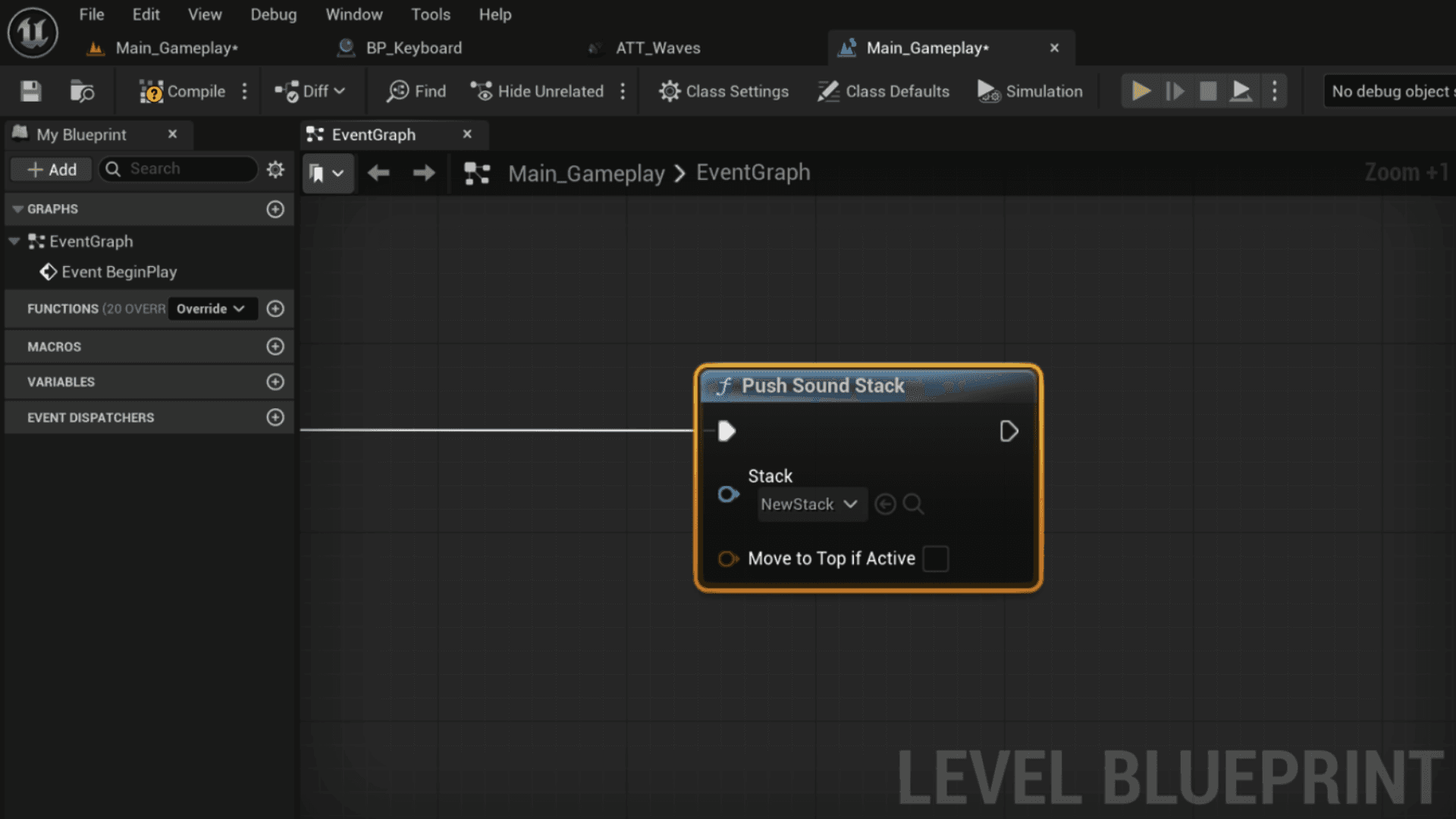
Play the Sound
Play the sound using its Gameplay Tag.

Visualize the Attenuation
Activate the visualizer and connect it to the source.

Keeping Sound Stack Data in Sync
The tag is both the sound’s identifier and the key used inside the Sound Stack map. Changing it required updating the map and keeping the editor in sync.
Challenge
Visualizing Tag-Based Sounds
Tag-based sounds are spawned at runtime and do not have a placed Audio Component. This meant Unreal could no longer display its attenuation.
Challenge
Flexibility vs Default Unreal Visualization
The tag-based workflow made sound setup more flexible and kept it in one place, but removed Unreal’s built-in attenuation preview. Thus the custom visualizer.
Tradeoff
Impact
Improved collaboration between departments by providing a dedicated editor for managing and accessing sounds.
Reduced the need to search through gameplay Blueprints or C++ code when changing or iterating on sounds.
Improved loading performance and reduced memory use by grouping sounds based on the current level or gameplay context.
Made attenuation strength easier to understand by displaying it as a custom 3D volume.
What I Learned
Designer-facing tools are valuable because users should not need to understand the internal data structure to use a system.
Gameplay Tags are useful for separating systems, but they also need good search and debugging tools.
Debug visualization is especially important for systems such as audio, where most of the behavior is normally invisible.
What I Would Improve
Add an Active Sound Stack Debugger that shows the current stack order during Play Mode.
Add a Preview button to sound entries so they can be tested directly from the editor.
Show currently playing sounds with debug text during Play Mode.
Connect the attenuation visualizer directly to Sound Stack entries so their assigned attenuation can be previewed faster.
Add documentation and an example level that explains the full workflow.
Continue developing the environment audio zone and emitter systems, including portal-based sound propagation similar to Wwise workflows.